November 12, 2026
WordPress Site Hacked? What to Do in the First 24 Hours
Read article →

wordpress · Security
A practical WordPress maintenance checklist: what to do weekly, monthly and yearly, how to update safely, and when to hand it to a professional.

Updated October 10, 2026

A WordPress site is software, and software that is not maintained gets slow, breaks and eventually gets hacked. Most hacked sites we clean up were running an outdated plugin. The good news is that maintenance is routine work. This checklist splits it into weekly, monthly and yearly tasks so nothing is missed.
Every task below assumes you have a working backup. Set up automatic backups that are stored somewhere other than your web server, and keep at least two weeks of copies. A backup you have never restored is only a hope, so test a restore on a staging site once.
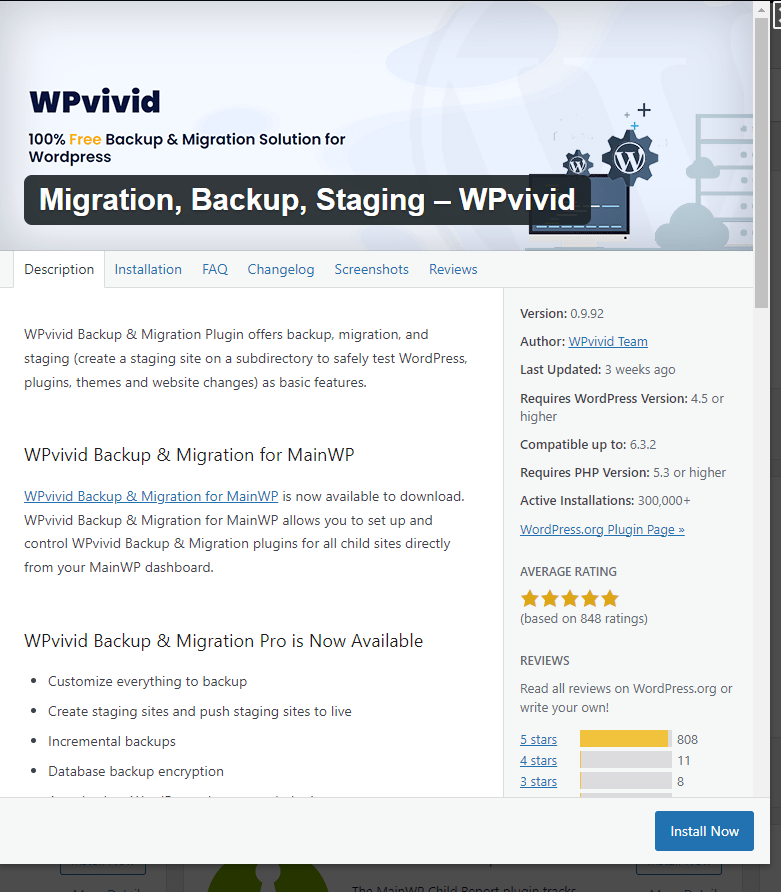
A free option we often use is WPvivid, which covers backups, migration and staging.
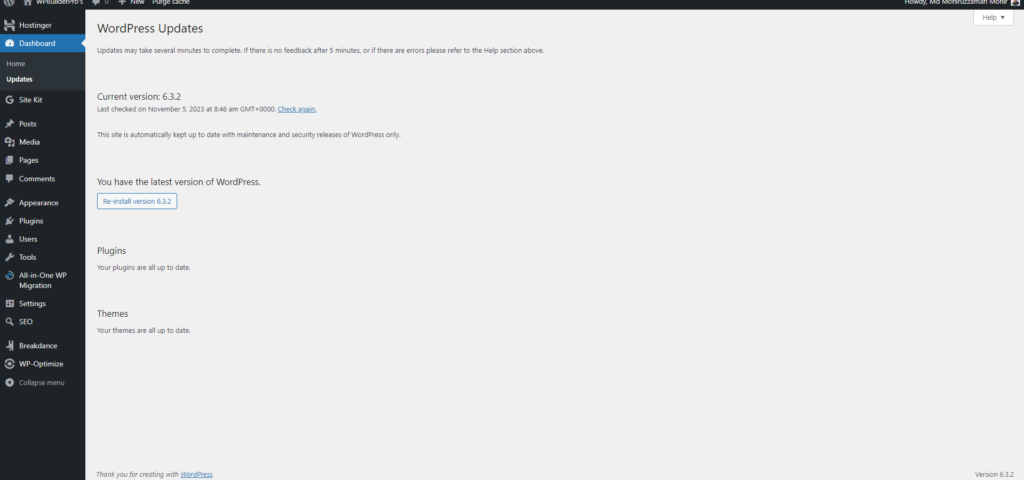
Updates fix security holes, and attackers start scanning for a vulnerable version within days of a fix being published. To update safely:
Open your backup tool and confirm the latest backup is recent and complete.
Open the home page and one inner page on your phone. Broken layouts and expired licences are usually visible at a glance.
Go to Tools > Site Health. WordPress flags outdated PHP, inactive plugins, failing scheduled tasks and other issues here.
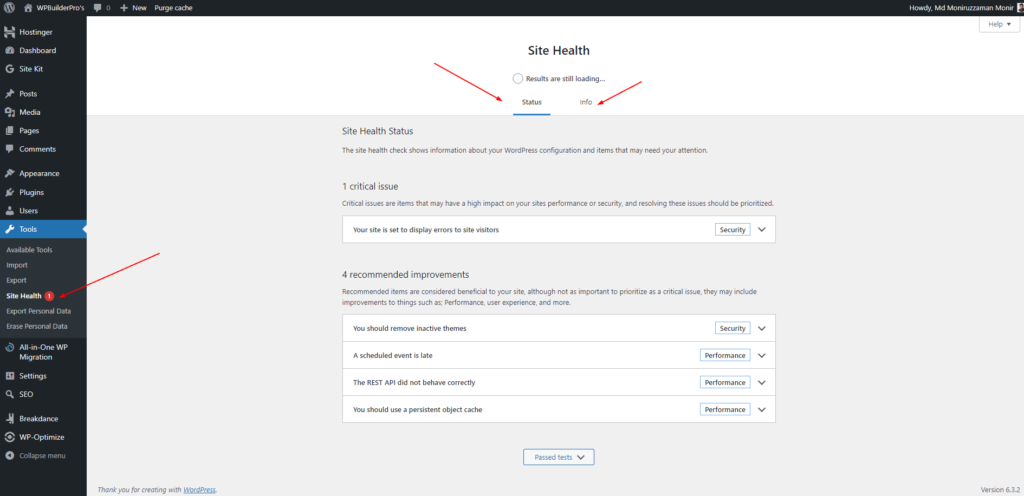
Delete inactive plugins and themes. Deactivated code can still be exploited, because the files are still on the server.
Remove accounts for people who no longer work with you, and make sure only the people who need it have the Administrator role.
Submit every contact and quote form and confirm the email arrives. A silently broken form can cost you weeks of enquiries.
Run your main pages through PageSpeed Insights and compare with last month. A sudden drop usually points to a new plugin, a large image or a third-party script.
Run a security scan, and check Google Search Console for security warnings or pages you do not recognise.
Broken links frustrate visitors and waste search engine crawl time. Check for them and fix or redirect them.
Remove old post revisions, spam comments and expired transients. This keeps the database small and backups fast.
If you have one simple site and thirty minutes a week, you can do all of this yourself. If the site brings in leads or sales, or you run several sites, it is usually cheaper to hand it over than to deal with one bad outage.
We look after updates, backups, security and speed for our clients. See our bug fixing and technical support service, or book a free call and we will tell you what your site needs.
Tell us what you are working on. You get a clear plan and a fixed quote.
Keep reading


Free call · no sales pitch
Pick a time that suits you. A rough idea or a broken site is enough. You leave with a clear plan and a fixed quote.

Your call is with Moniruzzaman Monir, WordPress expert
A free 30-minute chat about your site. Not a sales pitch.
Calendar not loading? Open the booking page or send a message.
Moniruzzaman MonirWordPress expert, WPBuilderPros