November 12, 2026
WordPress Site Hacked? What to Do in the First 24 Hours
Read article →

Security · wordpress
Why your WordPress site still shows Not Secure after installing SSL, and how to fix mixed content, redirects and certificate errors step by step.

Updated November 12, 2026
Almost every host now includes a free SSL certificate, so having one is no longer the issue. The usual problem is that the certificate is installed and the browser still shows "Not Secure", or the padlock is missing on some pages. This guide explains why that happens and how to fix it.
SSL encrypts the connection between a visitor's browser and your site, so passwords, form entries and payment details cannot be read on the way. Browsers warn visitors about sites without it, and search engines prefer secure sites. For any site with a form or a login, it is not optional.
Go to Settings > General and check that both the WordPress Address and Site Address start with https://.
Both versions of the site may be reachable. Visitors who arrive on the old http address stay on it. Your host's control panel usually has a "force HTTPS" switch. Turn it on.
This is the most common cause. The page itself loads securely, but an image, script, font or stylesheet inside it is still requested over http. Browsers then remove the padlock or block the file.
A certificate issued for example.com may not cover www.example.com or a subdomain. Reissue it to include every address you use.
Free certificates renew automatically, but renewal can fail after a DNS or hosting change. Check the expiry date in your hosting panel.
http://yourdomain.com to https://yourdomain.com. Take a backup first.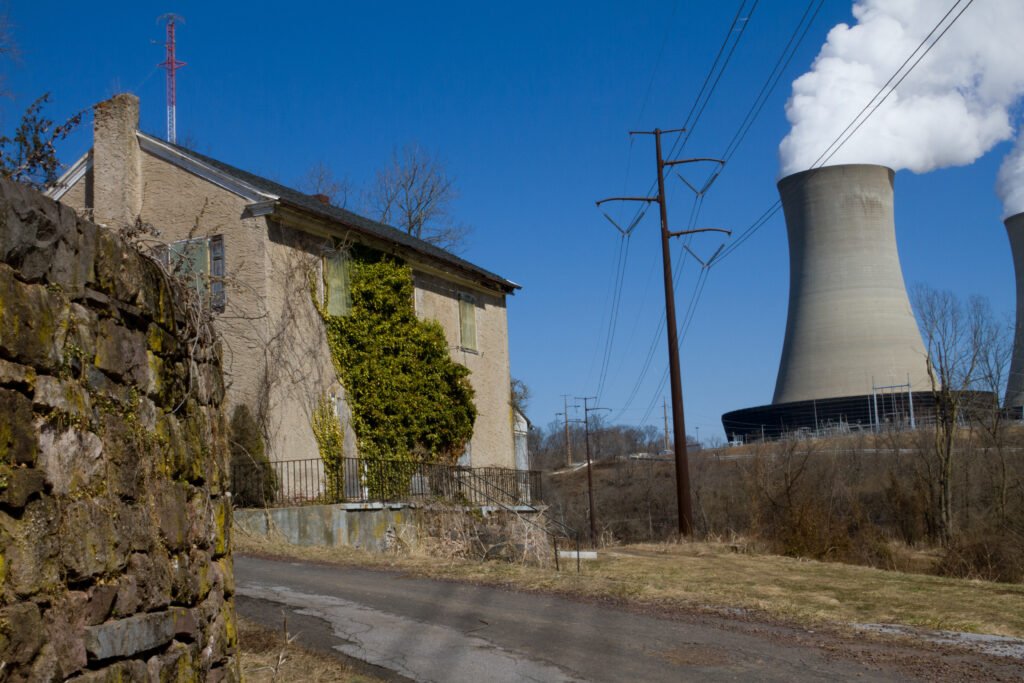
http:// and https://, with and without www. All should land on one secure address.A padlock means the connection is encrypted. It does not mean the site is safe from being hacked. Outdated plugins and weak passwords are still the main risks. Our guide on how to secure a WordPress site covers those.
Mixed content hidden in builder data, hard-coded theme files or old plugins can be stubborn. Our bug fixing and technical support team fixes these regularly. Book a free call and send us the address.
Tell us what you are working on. You get a clear plan and a fixed quote.
Keep reading

 Moniruzzaman MonirWordPress expert, WPBuilderPros