November 13, 2026
Breakdance vs Bricks vs Elementor vs Oxygen: Which Builder for a Business Site?
Read article →

Breakdance
Step-by-step Breakdance form builder tutorial: add fields, send email notifications, store submissions, block spam and test before you go live.

Updated November 13, 2026
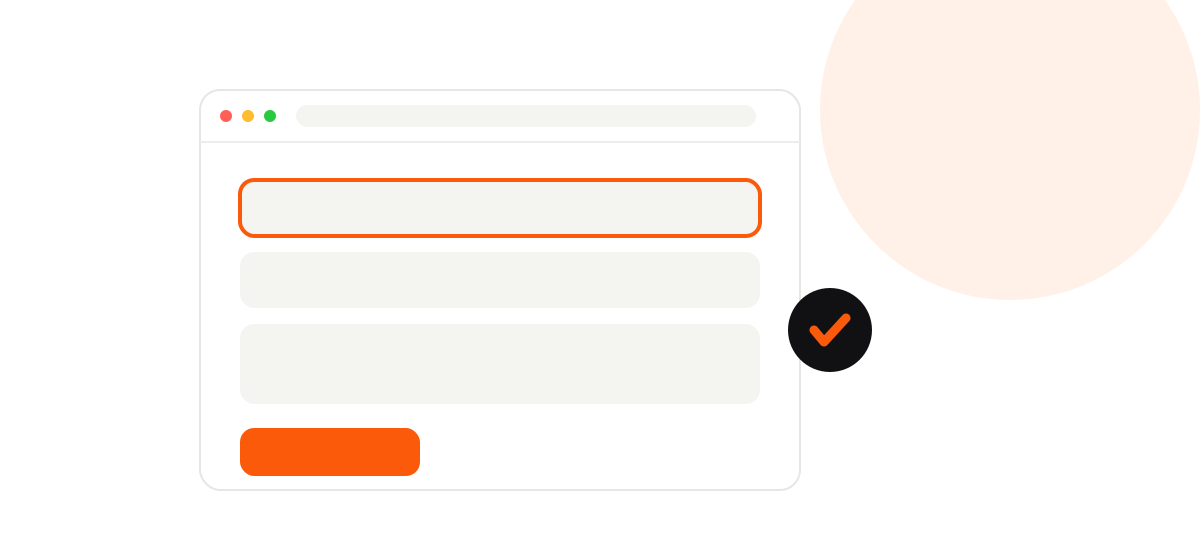
Breakdance has its own form builder, so most sites do not need a separate forms plugin. It handles contact forms, quote requests, newsletter sign-ups and multi-step forms, and it can send the results to your inbox or to another tool. This tutorial walks through building a working contact form from start to finish.
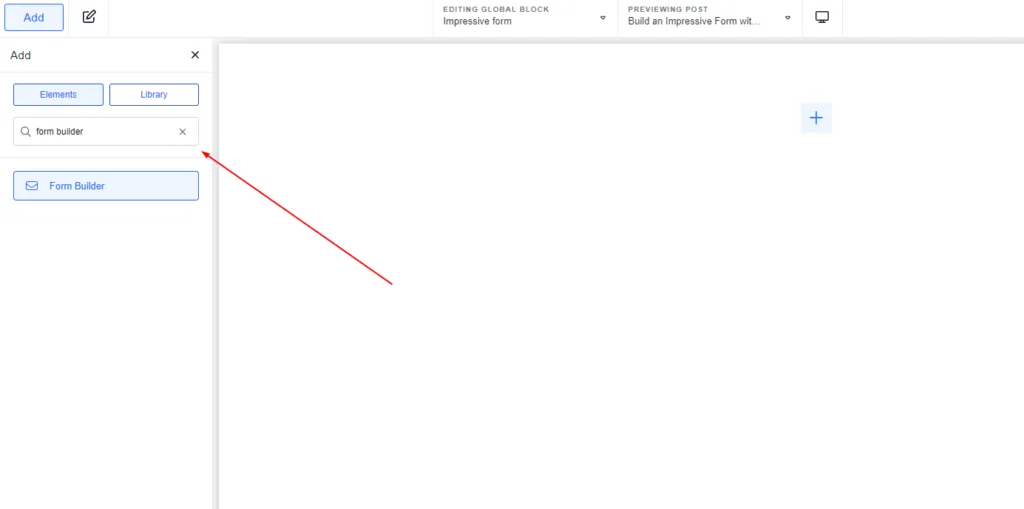
Open the page in Breakdance, click Add, search for Form Builder and drop it where you want the form to appear. Breakdance inserts a basic form you can edit.
Select the form and open its settings in the left panel.
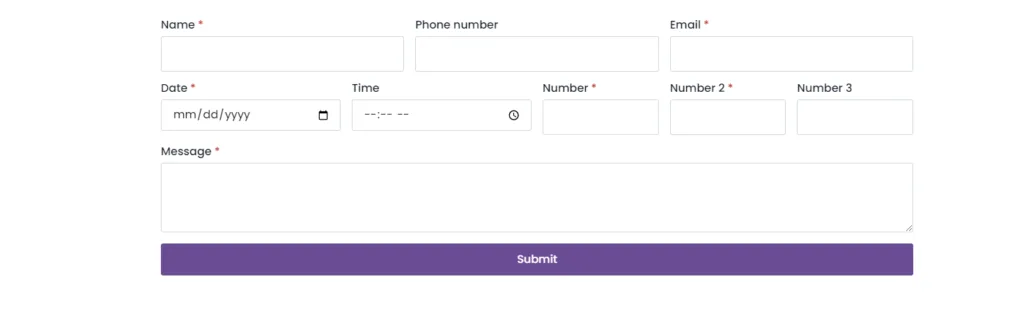
Keep it short. Name, email and message are enough for most contact forms, and every extra required field costs you enquiries.
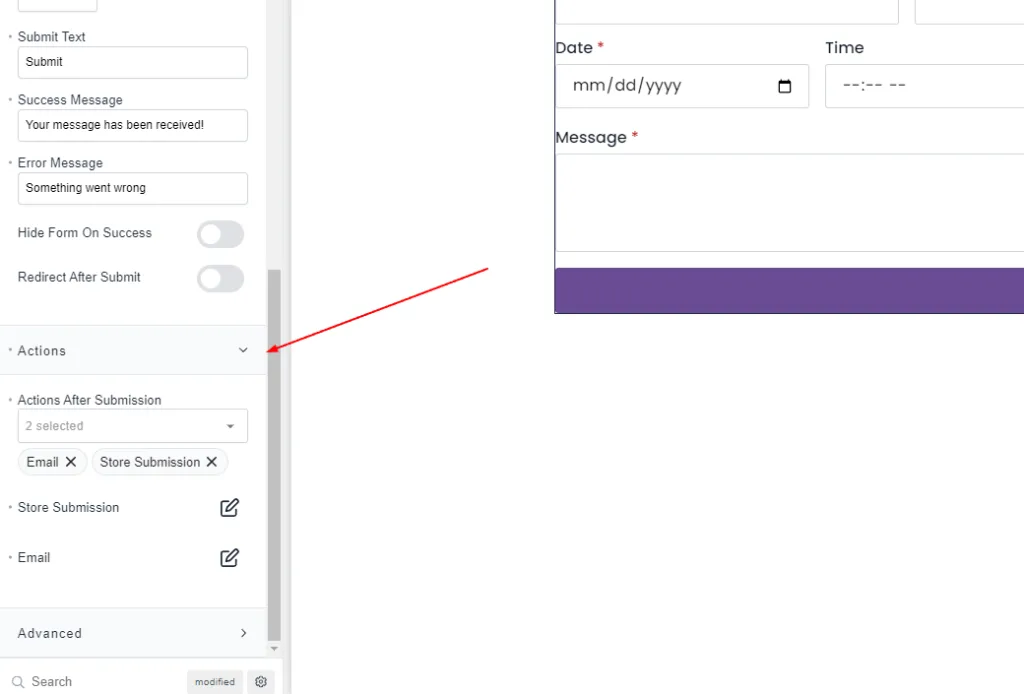
In the Actions section, pick what the form does with each submission. You can combine several:
We always keep Store Submission switched on. Email delivery from a web server is the most common point of failure, and stored entries are your safety net.
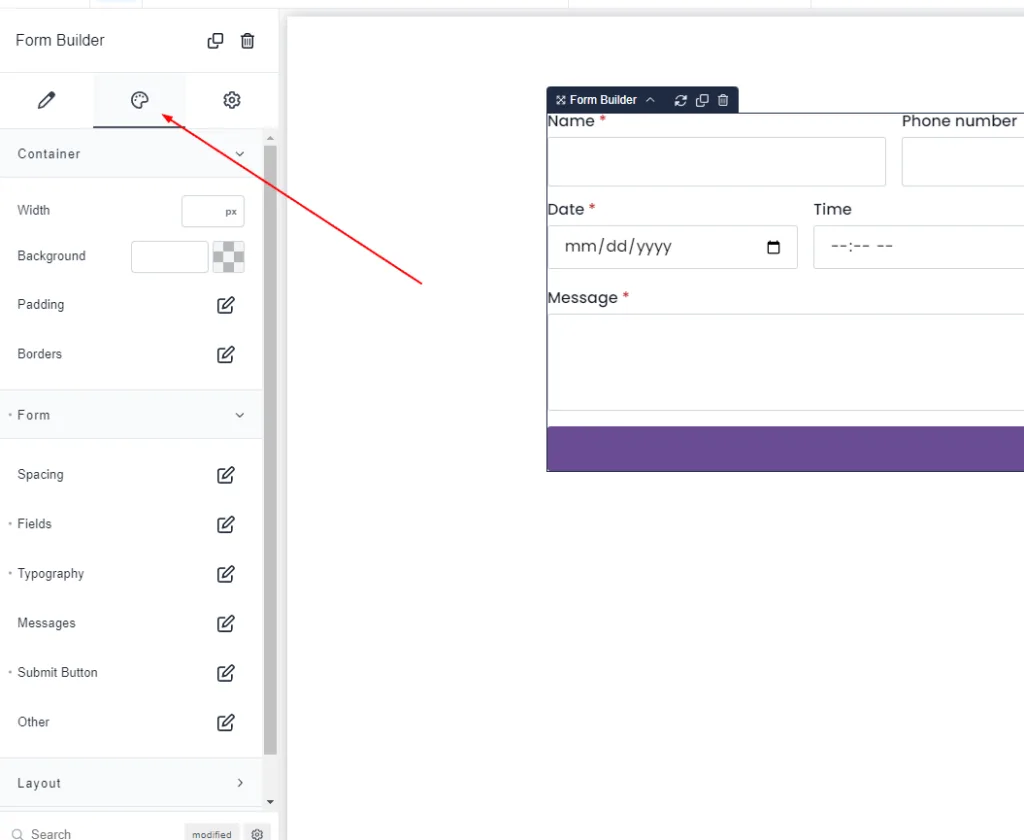
Switch to the Design tab to control the layout, field spacing, colours, borders, labels and the submit button. If you have set global form styles in Breakdance, the form will inherit them and you may not need to change anything here.
An unprotected form will collect spam within days. Breakdance supports a honeypot field and reCAPTCHA. Turn on the honeypot first, as it is invisible to visitors. If spam still gets through, add reCAPTCHA by entering your keys under Breakdance > Settings > API Keys.
If the entry is stored but no email arrives, the form is fine and the problem is mail delivery. Install an SMTP plugin and send through a proper mail service.
If your form will not send, needs to feed a CRM, or you want a multi-step quote form built properly, our bug fixing and technical support team can sort it out. You can also book a free call.
Tell us what you are working on. You get a clear plan and a fixed quote.
Keep reading
Free call · no sales pitch
Pick a time that suits you. A rough idea or a broken site is enough. You leave with a clear plan and a fixed quote.
Your call is with Moniruzzaman Monir, WordPress expert
A free 30-minute chat about your site. Not a sales pitch.
Calendar not loading? Open the booking page or send a message.
Moniruzzaman MonirWordPress expert, WPBuilderPros